
How to Set Up a 3D Printer and Start Prototyping: A Beginner’s Real-World Guide
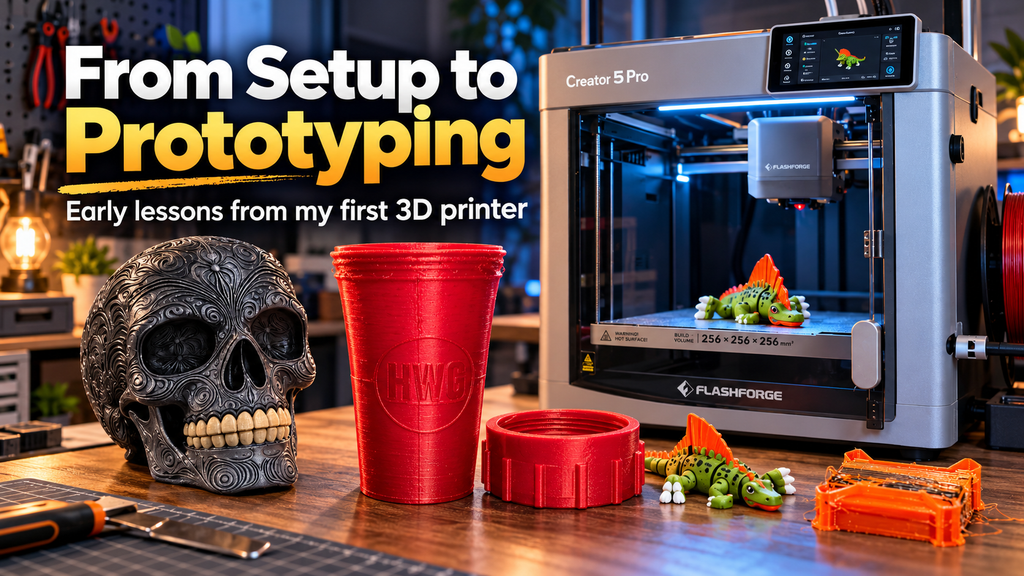
Buying a 3D printer is the easy part. The real learning starts when the box is open, the machine is on the table, and you have to turn a pile of hardware, tubing, filament, software, and settings into a successful print.
That is also where 3D printing gets much more interesting.
My first few weeks with the FlashForge Creator 5 Pro went from unpacking and setup, to a small white test boat, to multicolor prints, larger decorative projects, failed prints, functional parts, and eventually designing and revising my own prototypes.
The biggest lesson was that there is a major difference between owning a 3D printer and learning how to use one as a tool.
This guide walks through that progression: what setup really looks like, what your first prints should teach you, what starts going wrong as projects get more ambitious, and how you can move from downloading models to actually prototyping your own ideas.
👉 Quick Tip: Do not make your first goal “print something impressive.” Make your first goal “learn what normal looks like.” A simple test print teaches you far more about the printer than jumping straight into a 20-hour project.
Before You Turn the Printer On: Plan Where It Is Going
One of the first things I learned was that a larger enclosed 3D printer is not something you casually move around every time you want to use it.
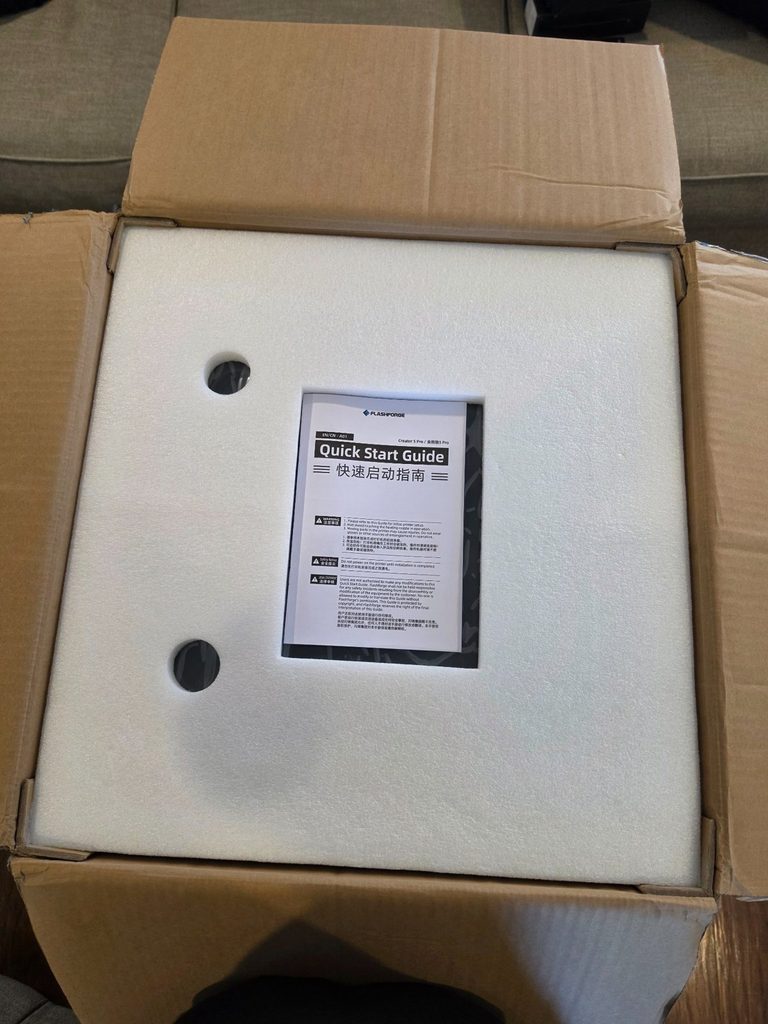
The Creator 5 Pro arrived heavily packed, with protective foam, removable components, tubing, accessories, build plates, and hardware packed around the machine. It was substantially assembled, but “mostly assembled” is not the same thing as “plug it in and print.”
Before unpacking a printer, it helps to know where it will live. You need enough room for the machine itself, the door or enclosure to open, filament to feed properly, power access, and enough workspace around it to load filament, clean the build plate, remove prints, and perform basic maintenance.
🤔 Something to Think About: The advertised footprint of a printer is not the same as the amount of space the printer needs in real life. Doors, spool holders, filament tubes, top enclosures, cable routing, and access for maintenance all add to the working footprint.
What 3D Printer Setup Actually Looked Like
With this machine, setup was not especially difficult, but it was a process.
- Remove the shipping material and internal foam carefully.
- Identify the loose components and accessories before throwing away packaging.
- Install the removable printer components and enclosure pieces.
- Connect the filament tubing and print-head hardware correctly.
- Install the build plate and check the print area.
- Power the printer on and work through the initial touchscreen setup.
- Connect the printer to the network and software if you plan to send prints wirelessly.
- Load filament and run the machine’s first test print.
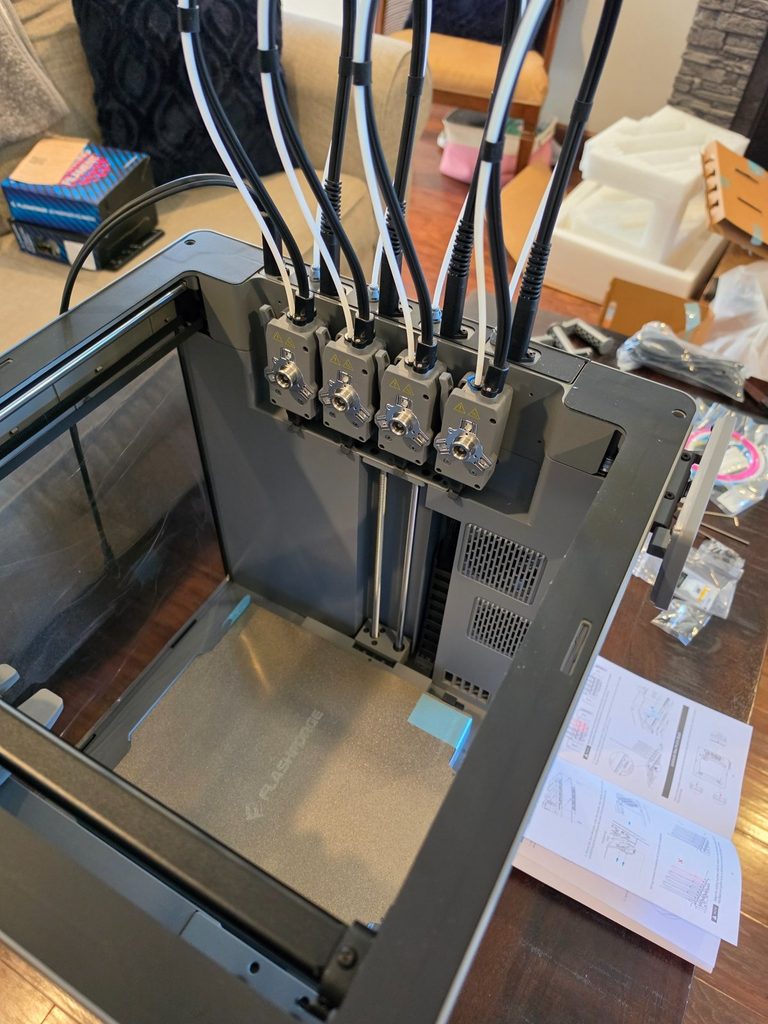
The important part for a beginner is not memorizing these exact steps for this exact printer. Every machine is a little different. The larger point is that you should slow down during setup and understand what each part is doing.
Where does the filament enter? Which path does it follow? Which print head is active? How does the build plate attach? How do you remove a finished print? How do you access the nozzle if something jams?
Those questions become much easier to answer later if you pay attention while assembling the machine instead of rushing through the instructions.
Your First Print Should Be Boring
My first completed print was a small white test boat. It took a little over an hour.
It was not useful. It was not impressive. It was exactly the right first print.
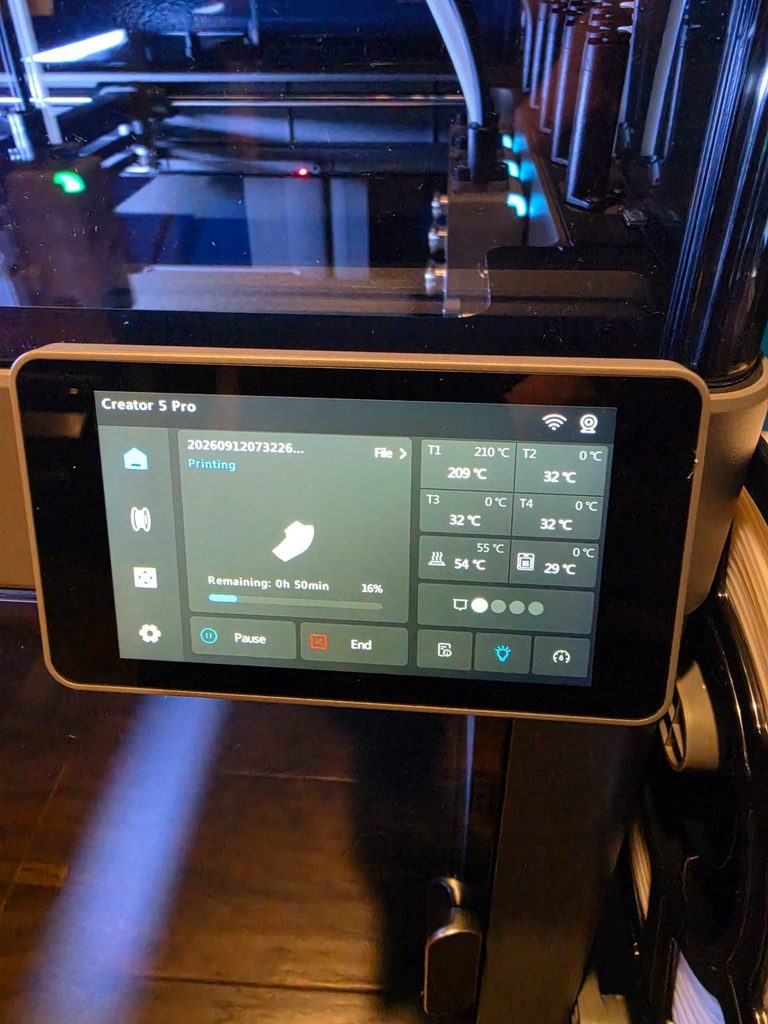
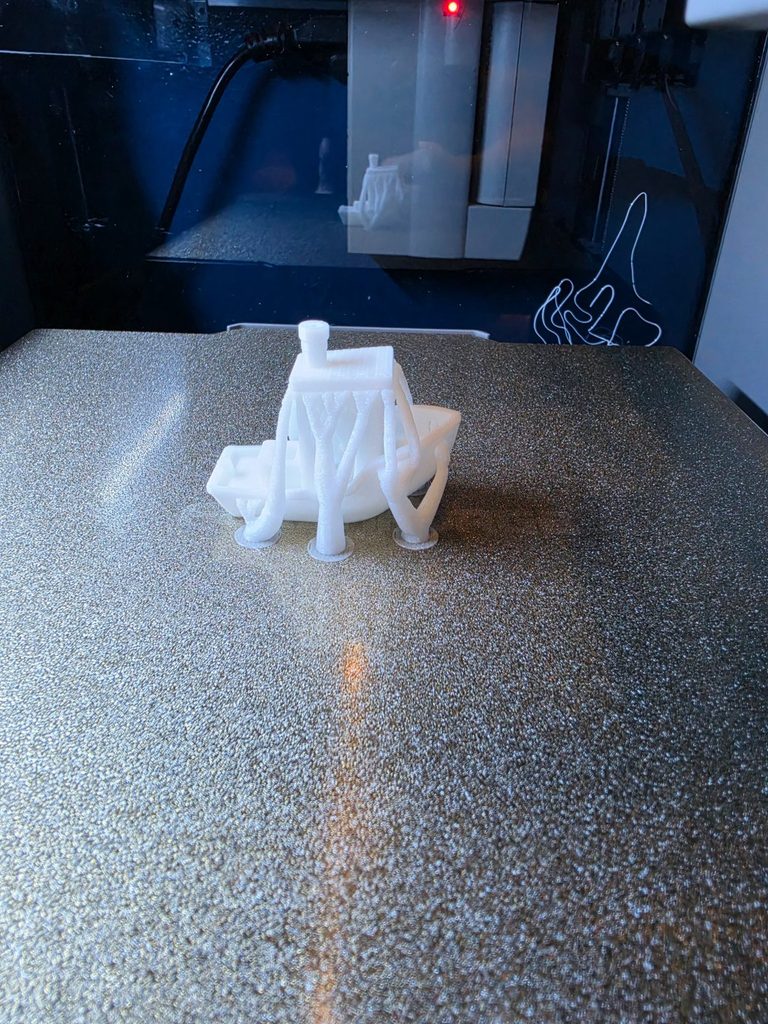
A simple test model confirms several things at once:
- The printer can heat correctly.
- The filament is feeding through the nozzle.
- The first layer is sticking to the build plate.
- The printer is moving correctly on all axes.
- The selected profile can produce a complete part.
- You can remove the print without damaging it or the build surface.
That baseline matters. If a simple test model prints well and your next ambitious project fails, you know the printer is at least capable of producing a good result. That gives you somewhere to start troubleshooting.
🦺 Safety First: A 3D printer contains hot nozzles, a heated build plate, moving parts, and electrical components. Learn where the hot and moving areas are before reaching into the machine, and follow the printer manufacturer’s instructions before servicing, clearing jams, or replacing components.
Then You Start Learning What the Printer Can Really Do
Once the basic test print worked, it was tempting to move quickly into more interesting projects. That is where the learning curve started to get steeper.
One of the early multicolor projects was a small articulated dinosaur. Compared with the simple white test print, the finished model was much more interesting. It also introduced more complexity.
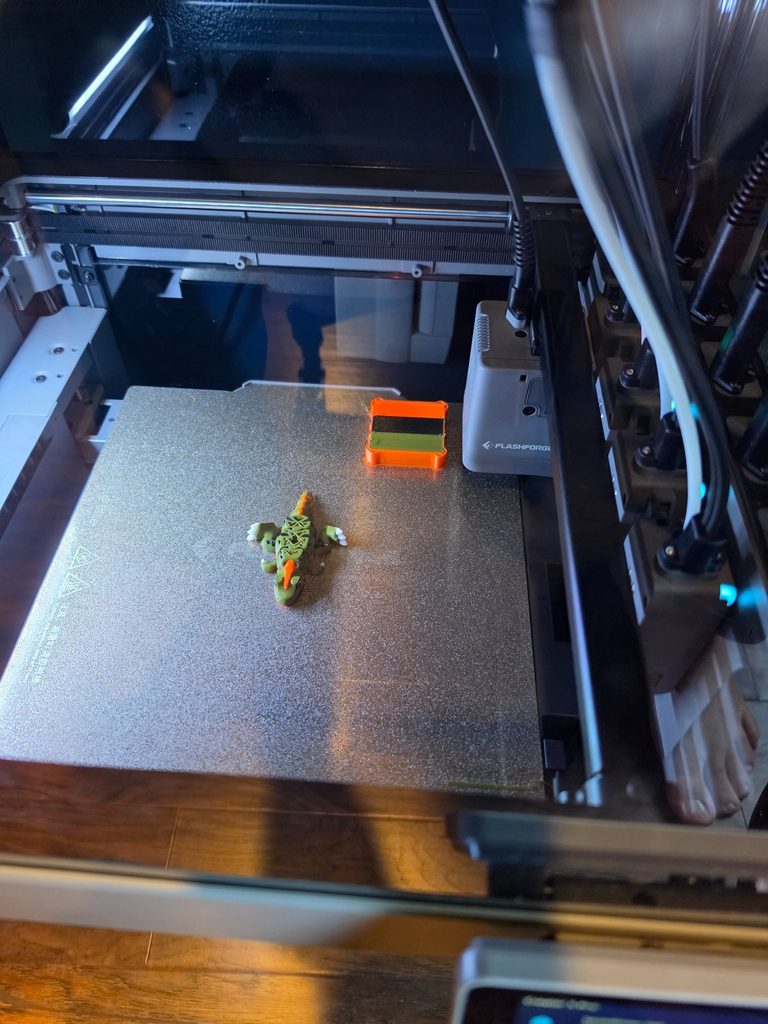
Multicolor printing is a good example of why 3D printing becomes more than pressing a button. Every color change has to happen cleanly. The machine may need to purge the previous color. That takes time and uses filament that never becomes part of the finished model.
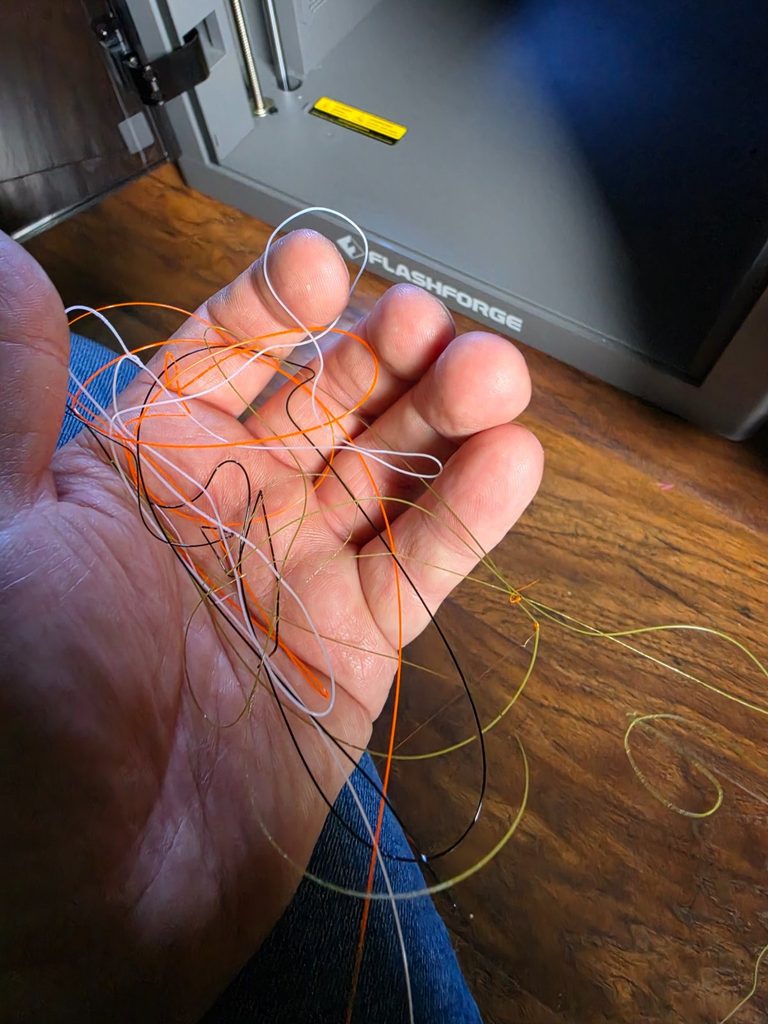
That does not mean multicolor printing is a bad idea. It means you should understand the trade-off before assuming every print should use four colors just because the machine can do it.
A Successful Print Can Still Teach You Something New
One of the more satisfying projects was a large decorative skull with a detailed surface pattern. Compared with the first test boat, it looked like it came from a completely different machine.
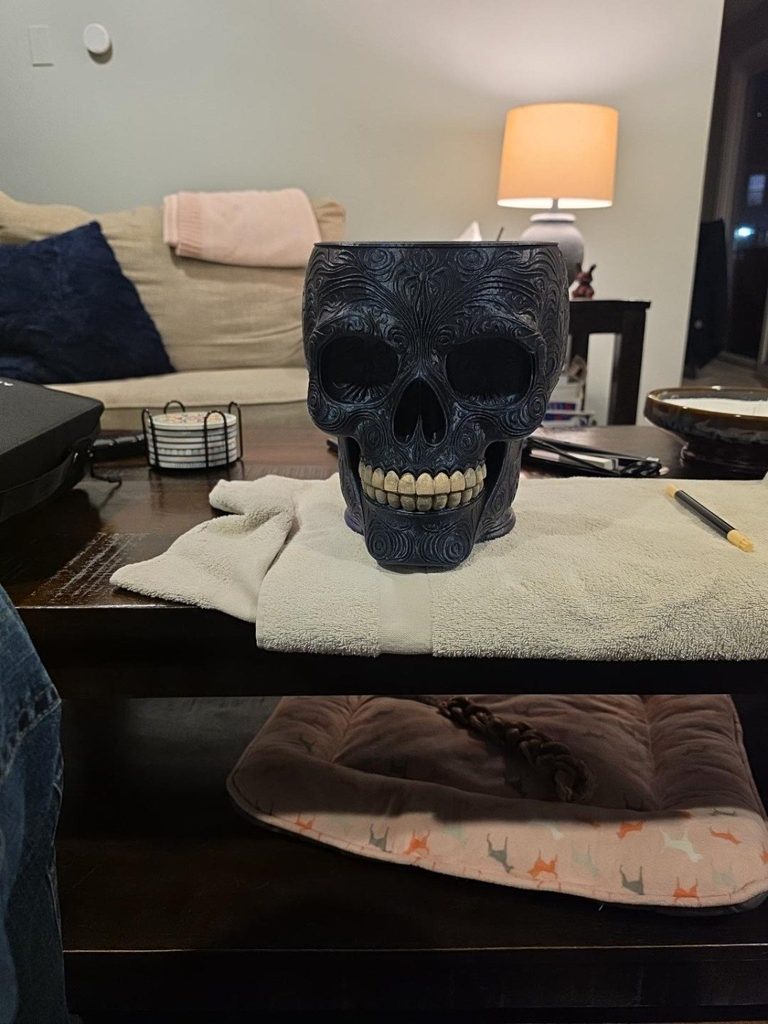
But that print also taught a different set of skills: how a larger model behaves, how visible layer lines affect the finished appearance, how post-processing changes a print, and how much finishing can improve a model that already printed well.
Printing and finishing are separate skills. A printer can create the object, but sanding, painting, dry brushing, markers, filler primer, clear coat, or other finishing methods can change how professional the result looks.
For someone who is just starting, decorative models are useful because they let you practice the printer without also worrying about dimensions, clearances, moving joints, or whether the part fits something in the real world.
Then Something Fails
Eventually you get a print that looks nothing like what you expected.
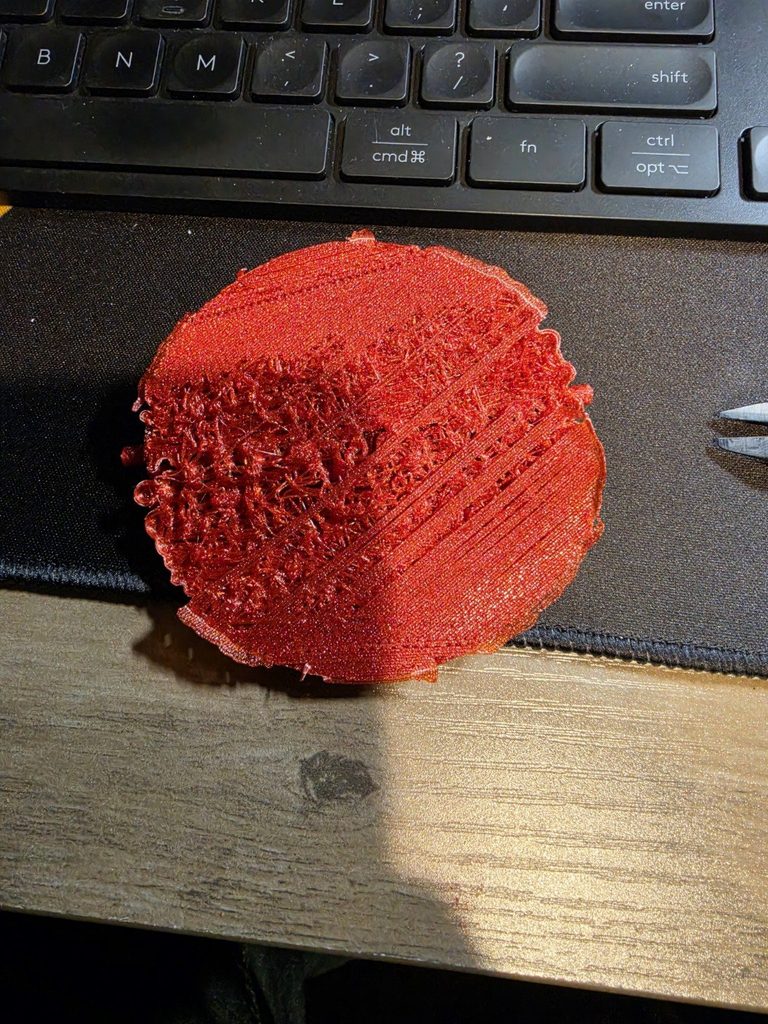
One red circular part printed cleanly across part of the surface and then turned into a tangled mess across another section. I have also dealt with supports that were too difficult to remove and projects where pieces lost adhesion or failed partway through a long print.
The important lesson was not finding someone to blame. It was learning to look at a failure as information.
Did the failure begin at the first layer? Did a support break loose? Did the model need a different orientation? Was the part asking the printer to bridge too far? Was there too little contact with the build plate? Was the support interface too aggressive?
You do not need to know the answer instantly. You need to know where to start looking.
⚠️ Common Mistake: Changing five settings at the same time makes troubleshooting harder. When possible, change one meaningful variable, print again, and see whether the result improved.
Downloaded Models Teach Printing. Your Own Designs Teach Prototyping.
There is a point where 3D printing changes.
At first, most of the work is learning how to print files someone else designed. You download the model, prepare it in the slicer, choose the material and settings, and learn how the printer behaves.
Prototyping is different because now the design itself can be wrong.
The printer may do exactly what you told it to do and still produce a part that does not fit, does not move correctly, is too loose, is too tight, is unnecessarily hard to print, or simply does not work the way it looked like it would on the computer.
The Prototype Loop: Design, Print, Test, Change, Repeat
This is where 3D printing started becoming much more useful for HardWorkerGear.
The process is simple to describe:
| Stage | What You Are Trying to Learn | What Happens Next |
|---|---|---|
| Design | Turn the idea into real dimensions and features. | Export the model and prepare it for printing. |
| Slice | Choose orientation, layer height, walls, infill, supports, and material settings. | Estimate time/material and send the job to the printer. |
| Find out whether the design is printable as intended. | Inspect the print before assuming it is successful. | |
| Test | Check fit, movement, clearances, strength, comfort, and actual use. | Write down what worked and what did not. |
| Revise | Change only what the physical test showed needs improvement. | Print the next prototype and repeat the loop. |
A prototype is not a failed final product. Its job is to answer a question.
Does the part fit? Does the lid move correctly? Is the opening big enough? Is the clearance too loose? Can it print without unnecessary supports? Is the wall thick enough? Does the design still make sense when you hold it in your hand instead of rotating it on a screen?
🔍 Look For This: A good prototype should answer one or more specific questions. If you print a new version but do not know what you are testing, you can burn a lot of filament without actually improving the design.
What Repeated Prototypes Are Teaching Me
The clearest example so far has been the HardWorkerGear car cup-holder trash can.
It is still not a finished product. In fact, I still do not have a version that I would call a fully working prototype.
That might sound like a reason to leave the project out of this article. I think it is actually one of the most useful parts of the story.
When you first start designing your own parts, it is easy to imagine a simple progression: make the model, print it, test it, and move on. Real prototyping is usually messier than that.
One version may confirm that the overall size is right but expose a problem with the lid. The next may improve the lid but reveal too much play in a pivot. Another may fit correctly but create a new printing problem, require too much support, or use a connection that looks fine in CAD and feels wrong in your hand.
That is what this project has been teaching me: a prototype does not have to work perfectly to be useful.
Each version should answer a question:
- Is the overall size right?
- Do the parts fit together the way they should?
- Does the lid open, close, and stay where it belongs?
- Are clearances too tight or too loose?
- Can the part be printed reliably without unnecessary supports?
- Does the design still make sense when it is physically in your hand?
- Did the latest change actually fix the problem it was meant to solve?
The car trash can is still in that loop. There is no finished-product photo here because there is no finished product yet.
🤔 Something to Think About: If every prototype works perfectly, you may not be testing very much. The purpose of a prototype is to expose problems while they are still cheap and easy to change.
When the design eventually reaches a point where the fit, movement, printability, and material choice all make sense together, that will be worth documenting as its own milestone. For now, the unfinished project is a better example of what beginning real product development actually feels like.
Why PLA Makes Sense for Early Prototypes
For early design work, PLA has been a practical material because it is relatively easy to print and makes it possible to iterate without treating every test piece like a final product.
That does not mean PLA is automatically the right material for the finished object.
A part designed for a hot vehicle, outdoor exposure, impact, repeated flexing, or other demanding conditions may eventually need PETG, ASA, or another material better suited to the environment.
But there is little value in spending more time and money printing every early dimensional experiment in a tougher material when the design itself may change again tomorrow.
💰 Worth the Money? Save the more demanding filament for the stage where material properties are actually part of the test. Early prototypes are often about size, fit, movement, and basic function.
The Slicer Is Part of the Design Process
CAD determines the shape. The slicer determines how the printer is going to attempt to build that shape.
That means print orientation, supports, wall count, infill, layer height, brim or raft settings, and support interface choices can affect whether a design is practical even when the geometry itself is fine.
One of the most useful habits I have developed is asking a design question before printing:
Can I change the part so it prints more easily instead of adding more support material?
For functional parts, a support-free design can reduce print time, save filament, improve surface quality on critical faces, and make the finished part easier to clean up.
What I Would Do Differently Starting Over
- Start simpler. Use the first several prints to learn the printer instead of trying to prove what it can do.
- Change fewer variables. When troubleshooting, one change at a time is easier to learn from.
- Keep failed parts. A bad print can be a useful reference when comparing later settings or design revisions.
- Take photos. Progress becomes much easier to understand when you can look back at the first print, failed versions, and later improvements.
- Think about print orientation while designing. Do not wait until the slicer to discover that a feature creates unnecessary support.
- Use inexpensive material while dimensions are still changing. Upgrade the material when the use case requires it.
- Expect iteration. The first version of a custom part is a question, not an answer.
When Are You Ready to Start Designing Your Own Parts?
You do not need to become a 3D-printing expert first.
Once you can reliably load filament, prepare a model in the slicer, print a simple object, remove it from the bed, and recognize when something obviously went wrong, you already know enough to begin experimenting with your own designs.
Basic CAD experience helps, but the physical feedback from the printer becomes part of the learning process. The printer teaches you things the CAD model cannot.
How Do You Know a Prototype Is Getting Close?
- The overall dimensions have stopped changing significantly.
- Parts fit together consistently.
- Moving features behave the way you intended.
- Clearances feel deliberate instead of accidental.
- The print orientation is practical.
- Supports have been reduced where possible.
- Print time and material use make sense for the part.
- You are refining details instead of rebuilding the core concept.
- The final material choice can now be tested for the real environment.
That does not guarantee the next print is the last one. It means you are moving out of basic concept testing and into refinement.
The Biggest Beginner Lesson: Do Not Be Afraid to Waste a Print
Filament costs money, and long prints cost time. Nobody likes watching a print fail after several hours.
But there is a difference between wasting material and using material to learn something.
If a prototype proves the cup is too small, the lid is too loose, the support strategy is wrong, or a feature cannot print cleanly in that orientation, the material bought you information.
The real waste is printing the same problem over and over without changing what caused it.
Where to Go Next
If you are still deciding whether 3D printing makes sense for you, start with Is a 3D Printer Worth It for Students, Beginners & Home Workshops?
If you are choosing a first machine, see Best Beginner 3D Printers for Students, Garages & Home Workshops.
For practical project ideas, see Useful 3D Prints for Garages, Tool Organization, Dorms & Desks.
And before you build out your workspace, see the Beginner 3D Printing Supplies Checklist.
Why You Can Trust HardWorkerGear
This article is based on the actual progression of setting up and using a 3D printer for HardWorkerGear projects: unpacking the machine, completing the first test print, experimenting with multicolor models, dealing with failed prints and difficult cleanup, making larger decorative projects, and moving into functional design and repeated physical prototypes.
The car trash can project is still in development, and there is not yet a version I would call a fully working prototype. That is intentional to show here: real prototyping is iterative, and this article reflects the process while it is still happening rather than rewriting the story after everything works.
Final Thoughts
A 3D printer starts as a machine that can make interesting objects. It becomes much more useful when you stop thinking only about what you can download and start asking what problem you can solve.
The first test print teaches you the machine. The failed prints teach you troubleshooting. The larger projects teach you patience and finishing. The prototypes teach you design.
You do not need to know everything before you begin. You need a working printer, a simple first project, and a willingness to let each print teach you what to change next.